
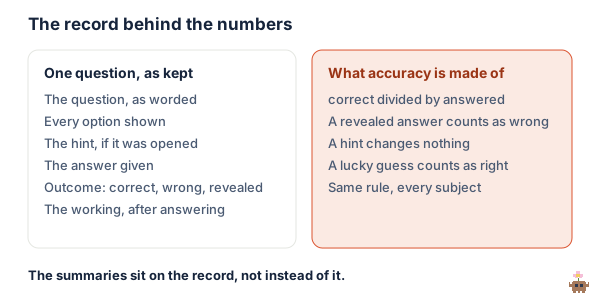
The Sprout Tutor dashboard shows you the questions themselves: each one as your child saw it, the options they were given, the answer they gave, whether they opened the hint, and whether they gave up and revealed the answer. The summaries sit on top of that record, not instead of it, which is the difference between a dashboard that reports and one that reassures.
This page walks through the four screens in the order you will meet them, says what each number is made of, and is honest about what the dashboard cannot tell you. It was written against the code that builds it rather than the brochure, and the limits it names are the real ones.
Checked against the Sprout Tutor source code on 29 September 2026. The dashboard is under active development during the beta, so treat the screen names and limits as accurate at that date.
What the beta covers
Sprout Tutor went into public beta on 22 September 2026. It follows the Victorian Curriculum F–10 Version 2.0 only, for Years 1 to 9, in English, maths and science. Other curricula are not covered yet. While it is in beta it is free on every Sprout plan, including the free one. Everything on this page is what the account holder sees; the child sees a different, much smaller surface, described in the safety page.
Before anything shows: three switches
The dashboard is empty until three things have happened, and it tells you which one is next.
- Turn Sprout Tutor on for the child. This also turns on their shared page, because that page is where the tutor opens from.
- Set the PIN. The tutor issues a four-digit PIN that the child types on their page to start practising. You can see it on the dashboard and generate a new one at any time, which is the whole of the login: no email, no password, nothing for the child to manage.
- Assign a subject. English, maths or science, at a Level. The Level you assign is recorded as the assigned Level, and it never changes on its own; what changes is the Level the child is practising, which is the subject of its own page.
Once the child has answered a question, four tabs appear: Subjects, Needs a hand, Level changes and Recent questions. The last three only appear once there is something in them. A child with no wrong answers yet has no Needs a hand tab, which is deliberate: an empty “struggling” panel reads as an accusation.
Subjects: one card per subject
Each card carries the tier the child is currently on (support, core or stretch), the assigned Level, the practising Level if it differs, and how far through the curriculum they are as “topic 4 of 24”. That count is taken from the same ordered list of content descriptions that the engine itself walks, so it is a position in the Victorian Curriculum, not a progress bar invented for the card.
Under that is “Currently on”: the content description the child is working through right now, written out in words, with its Victorian Curriculum code as a chip that links to the VCAA’s own page for it. Then four numbers for the subject: accuracy, questions answered, hints used and answers revealed.
For maths, and for any subject with at least three streams, the card also draws Streams vs grade level: a radar with one axis per stream (for Victorian maths, Number, Algebra, Measurement, Space, Statistics and Probability), a dashed ring at the assigned Level, and a point on each axis showing where the child is actually working in that stream. Above the ring is a stream they have climbed in, below it one they have dropped in. The same facts are listed as text underneath, so the picture is never the only way to read it.
That radar is the single most useful thing on the card, because a child is rarely behind in maths. They are behind in Measurement and ahead in Number, and a per-stream reading is the one a teacher would give you if you asked.
What the four numbers are made of
- Accuracy is correct answers divided by questions answered, as a percentage, for that subject.
- A revealed answer counts as wrong. When the child gives up and asks to see the answer, the question is recorded as revealed, it is not counted as correct, and the engine treats it exactly as a wrong answer. If reveals were free, accuracy would be measuring how often the child gave up.
- A hint changes nothing about correctness. Hints are available before answering, opening one is recorded against the question, and the count is on the card, but a question answered correctly after a hint is a correct answer. Whether it should count for less is a fair argument, and the record is there so you can make it.
- A lucky guess counts as right. On a multiple-choice question a guess can be correct and the dashboard cannot tell. The mix of question types limits how far that goes, and the ten types are their own page.
Needs a hand: a code, not a vibe
This tab lists every content description the child has got at least one question wrong on, most wrong first, up to eight of them. Each row is the description in words, its code, and the tally: “3 right · 2 wrong · 1 revealed”. Next to each is a Create lesson link that opens the lesson builder with that code, that subject and the child’s practising Level already filled in, so the thing they are stuck on becomes a lesson in about a minute.
Read the tally before you read the list. One wrong out of six on a code is a slip. Four wrong with two reveals is a child who has met something they do not have yet, and that is the row to act on. The list is sorted by wrong answers alone, so a code near the top with a lot of right answers next to it is a topic they are working through, not a problem.
Level changes: the log
Every time the child’s practising Level moves, in either direction, one line is written here: the subject, the stream if the move was within a single stream, the Level it moved from and to, the direction, the date, and who did it. “System” means the engine moved them under its published rules. “You” means the account holder reassigned the subject, which always resets the practising Level to the assigned one. The log keeps the last fifty moves.
Nothing else on the dashboard is as important for a difficult conversation with a school. A parent who says “an app says she is behind” is starting an argument. A parent who says “on the 14th it moved her Number work down one Level after five wrong at the easiest tier, and it moved her back up on the 22nd” is describing evidence.
Recent questions: the question itself
The last hundred questions, with one tab per subject so you read one subject at a time. Each row shows the outcome as a pill (correct, incorrect or revealed), a small marker if the hint was opened, the question as worded, and the content description it belongs to. Click a row and the whole question opens: the tier it was set at, the code, the prompt, the hint text if it was used, the working the child was shown after answering, and their answer against the correct one. For an ordering question that means their sequence next to the right sequence; for a matching question, every pair.
This is the screen to open first, before any summary, because five wrong answers that are the same mistake are one thing to fix, and five scattered wrong answers may be a tired afternoon. The Needs a hand tab cannot tell those apart. The questions can.
It is also the answer to the question the school AI rollout left parents asking, which is whether they can see what their child asked. Here there is nothing to ask, because there is no chat box, so the record is complete by construction: every question was written by the tutor, and the only thing the child contributes is an answer.
What it does not show you
- Time. Each question is stamped with when it was answered, but not how long it took. A child who sat with a question for four minutes and one who guessed in four seconds look the same.
- Other children. There is no percentile, no class average and no comparison to anyone else’s child. The only reference point is the curriculum itself, which is the one the school also uses.
- Why an answer was wrong. A slip, a misread question and a real misconception all count once. The pattern across several questions is what to trust, and you are the one reading for the pattern.
- Any commentary. No paragraph written by a model about how your child is going. The dashboard reports counts and questions and stops there, on purpose: a model’s opinion of a child’s work is not evidence.
- Whether it is working. A record of practice is not a learning result. Whether personalised AI tutoring improves learning has not been independently established, and very few rigorous studies exist. The dashboard makes the checking possible; it does not do the checking.
How to read it in two minutes a week
- Open Recent questions, not Subjects. Read the wrong ones. Ask whether they are the same mistake.
- Then open Needs a hand and read the tallies. A code with reveals in it is the one to spend twenty minutes on, and the Create lesson link is there for exactly that.
- Check the code against the curriculum. The chip links to the VCAA page. Our Victorian Curriculum explainer covers how the Levels and strands fit together.
- Look at the Level changes log once a fortnight. A move down that is followed by a move back up within a week or two was a wobble. One that holds is worth a sentence to the teacher, with the code.
- Run the cold retest. A day later, one question of the same kind, no device. The dashboard tells you what was practised; the retest tells you what stuck.
If your child’s school uses a testing platform, the two records answer different questions and are worth reading together; how to read a school assessment report is its own page.
Where the record lives
Every attempt is stored against the child’s record with the question as sent, the options, the hint, the working, the answer given and the outcome. It is reachable only by the signed-in account holder who owns that child’s profile, and never from the child’s public page. The answer key is stripped from a question before it reaches the child’s screen and is sent back only once the question has been answered or revealed, which is why a child cannot find the answers by looking under the page.
The short version
Four screens. Subjects gives you the tier, the Level, the current content description with its code, four numbers, and a per-stream radar for maths. Needs a hand lists up to eight codes with wrong answers, most wrong first, each with a link that builds a lesson on it. Level changes is a dated log of every move, with who made it. Recent questions holds the last hundred questions in full.
Accuracy counts a revealed answer as wrong and a hint as nothing. The dashboard does not record time, does not compare your child to anyone, and does not write an opinion. Open the questions first, the summaries second, and run the cold retest to find out what stayed.
Sprout Lessons builds a lesson from any Victorian Curriculum code, including the ones the dashboard names. Start free.
FAQ
What does the Sprout Tutor parent dashboard show?
Four screens. Subjects shows, per subject, the tier the child is on, the assigned Level and the practising Level if it differs, how far through the curriculum they are, the content description they are currently on with its Victorian Curriculum code, four numbers (accuracy, questions answered, hints used, answers revealed) and, for maths, a per-stream radar. Needs a hand lists up to eight codes with wrong answers, most wrong first. Level changes is a dated log of every move between Levels with who made it. Recent questions holds the last hundred questions in full: the question, the options, the hint, the working, the answer given and the outcome.
Can I see the actual questions my child answered?
Yes. Recent questions lists the last hundred, one tab per subject, and clicking one opens it in full: the tier it was set at, the code, the prompt as worded, the hint text if it was opened, the working the child was shown after answering, and their answer against the correct one. For an ordering question that is their sequence next to the right sequence. Because there is no chat box, the record is complete by construction: every question was written by the tutor and the only thing the child contributes is an answer.
How is accuracy calculated on the dashboard?
Correct answers divided by questions answered, per subject. A revealed answer is recorded as revealed and counts as wrong, both on the dashboard and in the engine that sets difficulty, so accuracy cannot be raised by giving up. Opening a hint is recorded against the question and counted on the card, but a question answered correctly after a hint is a correct answer. A lucky guess on a multiple-choice question counts as right, which is one reason the tutor mixes ten question types.
What does the dashboard not show?
How long a question took (each answer is timestamped, but duration is not recorded), any comparison to other children, why an answer was wrong, and any written commentary. The dashboard reports counts and questions and stops there. It also does not show whether the tutoring is working: whether personalised AI tutoring improves learning has not been independently established, and a record of practice is not a learning result.
Who can see my child's practice record?
Only the signed-in account holder who owns the child's profile. The record is never reachable from the child's public page, and the child logs in with a four-digit PIN that you can see and regenerate from the dashboard. The answer key is stripped from every question before it reaches the child's screen and is sent back only after the question has been answered or revealed.
Which curricula does the dashboard cover?
Sprout Tutor is in public beta for the Victorian Curriculum F-10 Version 2.0 only, for Years 1 to 9, in English, maths and science. While it is in beta it is free on every Sprout plan, including the free one. Other curricula are not covered yet.