
Sprout Tutor is practice your child does at home on the Victorian Curriculum: you set it up in four steps, your child opens their own page with a four-digit PIN, picks a subject and a theme, sees a short teaching deck on the topic, then answers ten marked questions on it. Every answer, right or wrong, lands on your dashboard as the question itself. That is the whole loop. This page walks through it once, start to finish, in the order you and your child meet it, and links down to the pages that explain each part in detail.
We build Sprout Tutor, so read this as a description from the people who wrote it. Every rule below was checked against our own code on 11 October 2026 rather than against the marketing copy, and where a number appears it is the number in the code.
What the beta covers
Sprout Tutor went into public beta on 22 September 2026. It follows the Victorian Curriculum F–10 Version 2.0 only, in English, maths and science, for Years 1 to 10. Other curricula, including the Australian Curriculum used in most other states, are not covered yet. While it is in beta it is free on every Sprout plan, including the free one, and it is not on the pricing page.
Step one: four switches on your side
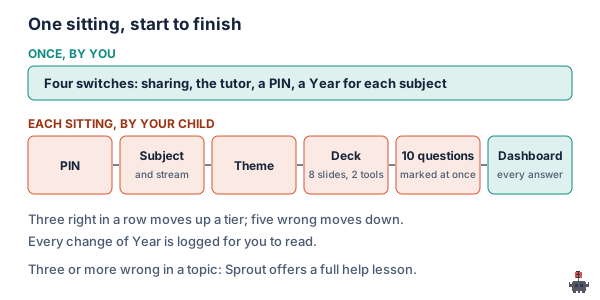
You set it up from your own dashboard, on the card for each child. The setup checklist has four rows and the tutor will not open until all four are ticked:
- Turn on sharing. Your child gets a page of their own at a private link. This is where they start every session; they never use your account.
- Turn on the tutor for that child.
- Set a PIN. Four digits, which you choose and can change.
- Assign subjects. For each of English, maths and science you choose whether it is on and which Year it starts at. Each subject has its own Year, so a child can work at Year 5 in English and Year 4 in maths. The page working at a different level explains why that is normal and how to choose.
The checklist counts as you go (“2 of 4 steps done”) and points at the next one, so you never have to guess why the tutor is not appearing.
Step two: your child unlocks it with the PIN
Your child opens their page and taps into the tutor, which asks for the PIN on a number pad. A few details here are deliberate:
- Six wrong PINs lock it. The threshold is six rather than three because young children mis-tap, and a lockout every other day would be worse than useless. Setting a new PIN from your dashboard clears the lock.
- An unlock lasts four hours, and there is no “remember this device”. A shared family tablet should not stay unlocked for the next child to pick up.
- Your child has no account. The unlock is a short-lived token naming only that child, valid only on the tutor. There is no email, no password and no chat box.
Why a bounded surface matters more than it looks is the subject of AI tutor safety for kids.
Step three: subject, stream and theme
Your child picks one of the subjects you switched on. If that subject has more than one stream at their Year, they pick one, or a mix of all of them. The streams are the Victorian Curriculum’s own strands:
- Maths: Number, Algebra, Measurement, Space, Statistics, Probability
- English: Language, Literature, Literacy
- Science: Understanding, Human Endeavour, Inquiry
So “just Measurement today, because that is what the report said” is one tap. Then they pick a theme: Classic, Footy, Netball or Animals. The theme changes the wrapper on the questions, a kicking-for-goal word problem instead of a plain one, and never the maths underneath. It is the only personalisation the tutor applies, and it applies for that sitting only. The reasoning is in teaching maths through interests.
Step four: a short teaching deck first
Before the first question on a topic, your child sees a teaching deck for that exact curriculum code: ten slots, eight teaching slides and two hands-on interactive tools. One tool comes straight after the first worked example, to explore the idea; the other comes before the summary, to practise it. The decks are written and checked ahead of time, one per code and theme, not generated while your child waits.
The deck comes back at the start of every sitting that lands on that code, not only the first time. That was a deliberate change: a real tutor recaps at the start of each session, and showing the teaching once in a child’s life turned out to be too little.
Step five: ten marked questions on the topic
A topic is ten answered questions on one content description code. When the ten are done, the topic is finished and the next code down the same stream is offered; your child can stop there or carry on. The questions come in ten interaction types, not only multiple choice: ordering, matching, sorting into groups, spotting the error in a worked solution, estimating within a range, a set of true or false statements, typed answers and more. The ten question types has an example of each.
Marking is done by code, not by a model’s opinion. Each question type has its own grader, and the answer key is stripped out before the question reaches your child’s screen, so it cannot be read out of the page. A typed answer is forgiving about the things that do not matter (case, spacing, “.5” for “0.5”) and strict about the things that do: “-3” is never accepted for “3”. Why a chatbot cannot mark your child’s work explains why that separation matters.
Each question has a hint and a way to reveal the answer. A hint changes nothing. A revealed answer is recorded and counts as wrong, because looking it up is not knowing it, and it can never be marked correct. The longer version is in will an AI tutor just give my child the answer.
Want to see it on your own child? Create a free account, tick the four switches, and set the Year for each subject. The tutor is free while it is in beta.
Step six: the tutor adjusts, by fixed rules
Inside each Year there are three tiers of difficulty: support, core and stretch. The rules that move your child between them are fixed numbers, not a model deciding on the day:
- Three right in a row moves up a tier.
- Five wrong in a row moves down a tier.
- Five wrong at the support tier drops the working Year by one, landing at the stretch tier of the Year below, so the step down is gentle.
- Three right at the stretch tier climbs a Year, one at a time, as far as the tutor has content.
Every change of Year is written to a log you can read, and so is every change you make by hand. The full rulebook, including a sitting traced answer by answer, is in how Sprout Tutor decides what comes next.
When a topic goes badly: the help lesson
If your child gets three or more of a topic’s questions wrong, the topic-complete screen has Sprout offer to make a full lesson on it. If they say yes, a lesson on that exact code is made and assigned to them, and it appears on their own page when it is ready. Before anything is made, the server re-checks the wrong answers against its own record rather than trusting the screen.
One honest note: the tutor itself is free in beta, but a help lesson is a full lesson, so it uses lesson credits from your account in the same way as a lesson you make yourself. If the account has none left, your child is told to check with you, and nothing is charged.
What you see afterwards
Your dashboard shows each subject’s working Year and tier, a needs-a-hand list of the codes with the most wrong answers, the log of Year changes, and the recent questions themselves: the question as your child saw it, the options, the answer they gave, and whether they used the hint or revealed the answer. What the dashboard shows explains what every number is made of. The literal question matters because a summary can only tell you a score, while the question tells you what your child actually thinks.
Your child, meanwhile, earns 10 XP for each correct answer and spends it on looks for their own Sprout. It is there to get practice started, and we do not pretend it does more than that.
What it does not do
- It does not chat. There is no open text box for your child to ask anything in. That is the point, and it is also a real cost: it cannot answer the question your child actually has.
- It does not explain a second way, live. The teaching deck is the explanation. If the deck does not land, a person explaining it differently is still the best fix, and AI tutor vs human tutor is honest about that trade.
- It does not cover other states yet. If your child’s school uses the Australian Curriculum or the NSW syllabus, the content descriptions will be close but not the same.
- It is not proven. The effectiveness of personalised-learning software like ours has not been independently established, and very few rigorous studies of it exist. Does AI tutoring actually work sets out what the evidence does say.
A sensible first week
- Set each subject at your child’s school Year. The rules will move it if that is wrong, and the log will tell you that they did.
- Ask for one topic a day, the deck plus ten questions, at the same time each day. That is roughly 15 to 20 minutes.
- Sit with them for the first one, to see the PIN pad, the theme picker and the hint button once together.
- On the weekend, read the needs-a-hand list and open two or three of the wrong answers. That is where a conversation, a teacher’s attention or a tutor’s hour is best spent.
The short version
You tick four switches once: sharing, the tutor, a PIN, and a Year for each subject. Your child unlocks their page with the PIN, picks a subject, a stream and a theme, reads a ten-slot teaching deck on one Victorian Curriculum code, then answers ten questions on it, marked by fixed graders, with the answer key never sent to their screen. Three right in a row moves up, five wrong moves down, and every Year change is logged. You see the questions themselves.
Start free; Sprout Tutor is in public beta for Years 1 to 10 on the Victorian Curriculum, free on every plan while in beta.
Checked against the Sprout Tutor source code on 11 October 2026: the setup checklist, the PIN and session rules, the theme and stream lists, the teaching deck format, the topic length, the tier and Year thresholds, the help lesson offer and the XP value. The tutor is under active development during the beta, so treat these as accurate at that date. The curriculum strands are the Victorian Curriculum F–10 Version 2.0’s own, as published by the VCAA.
FAQ
How do I set up Sprout Tutor for my child?
From your own dashboard, on your child's card, tick four switches: turn on sharing (which gives your child a page of their own at a private link), turn on the tutor, set a four-digit PIN, and assign subjects with a starting Year for each of English, maths and science. The tutor opens once all four are done.
What does a Sprout Tutor session look like?
Your child unlocks their page with the PIN, picks a subject, picks a stream such as Number or Measurement (or a mix), and picks a theme: Classic, Footy, Netball or Animals. They see a ten-slot teaching deck on one Victorian Curriculum code, eight slides and two interactive tools, then answer ten questions on that code. Each answer is marked straight away.
How does Sprout Tutor decide when my child moves up or down?
By fixed rules, not a model's judgement. Three right in a row moves up one of three tiers; five wrong in a row moves down. Five wrong at the lowest tier drops the working Year by one; three right at the top tier climbs a Year. Hints change nothing and a revealed answer counts as wrong. Every Year change is logged for the parent.
Is Sprout Tutor free?
Yes, while it is in public beta, which began on 22 September 2026: it is free on every Sprout plan, including the free one. The one exception is the optional help lesson Sprout offers after three or more wrong answers in a topic, which is a full lesson and uses lesson credits from the account like any other lesson.
Which curriculum does Sprout Tutor follow?
The Victorian Curriculum F-10 Version 2.0 only, in English, maths and science, for Years 1 to 10. Other curricula, including the Australian Curriculum used in most other states, are not covered yet.